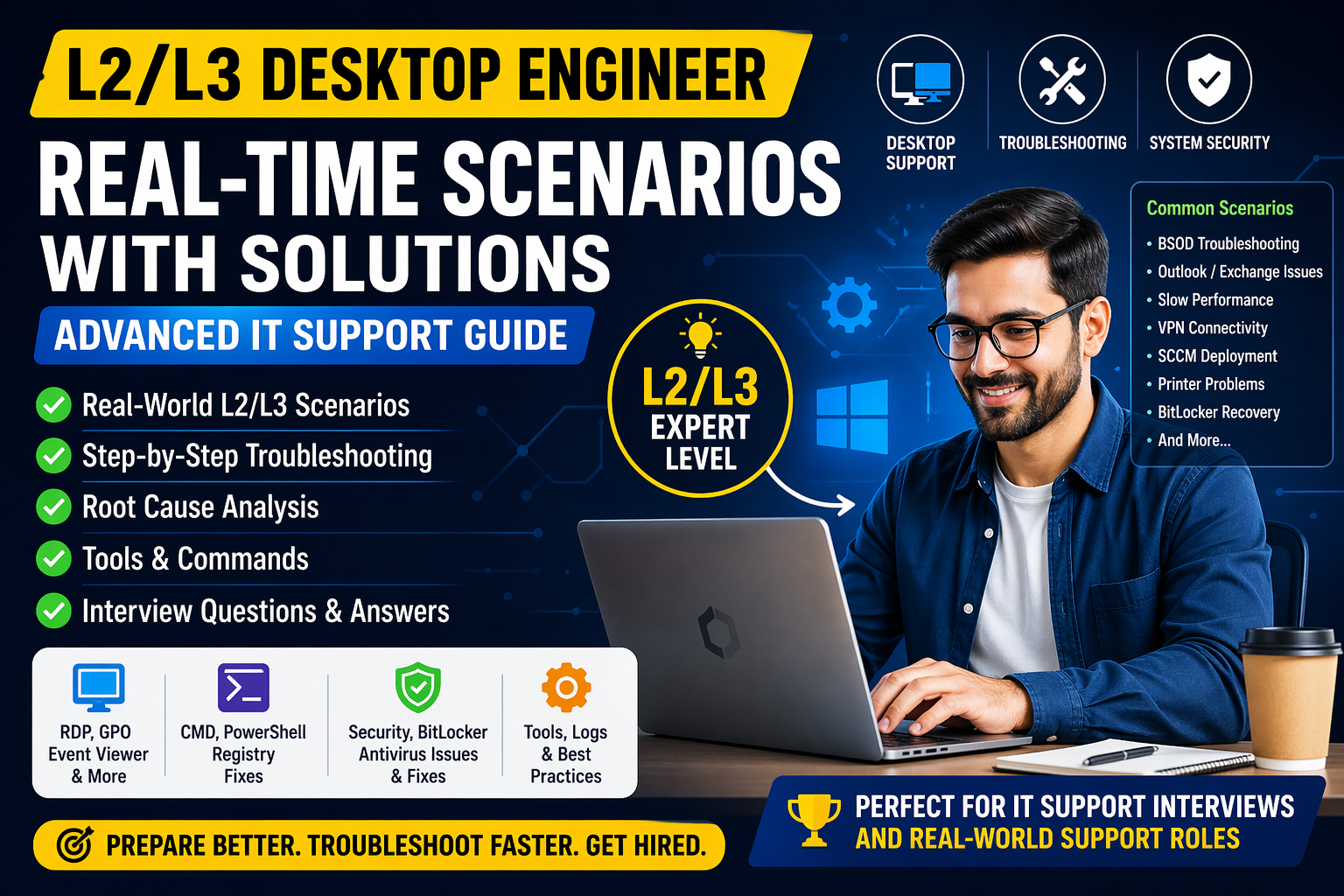
Advanced IT Support Interview Questions for Desktop Engineers (With Answers)
- Struggling with IT interviews? Learn top L2/L3 desktop engineer scenarios with real fixes and expert troubleshooting techniques.
- Crack desktop support interviews with these real L2/L3 scenarios. Learn advanced troubleshooting used in enterprise environments.
- Top L2/L3 desktop engineer issues explained! Learn real-time troubleshooting and land your IT support job faster.
- Discover real-world desktop engineer scenarios with solutions. Perfect for L2/L3 interview prep and hands-on IT support skills.
- Stop guessing in interviews! Learn real L2/L3 desktop support scenarios with clear solutions and expert guidance.
🔹 1. Tell me about yourself:
“I’m a Desktop Engineer with hands-on experience in troubleshooting hardware, software, and network-related issues in end-user environments. I’ve worked extensively with Windows systems, Active Directory, ticketing tools, and remote support.
In my previous experience, I handled user incidents like system slowdowns, application errors, printer issues, and network connectivity problems while maintaining SLA compliance. I also supported user onboarding, system installations, and patch updates.
What I focus on most is quick resolution with minimal user downtime, along with clear communication so users feel supported.”
🔹 2. How do you troubleshoot a slow computer?
“First, I check system resource usage using Task Manager to identify CPU, RAM, or disk bottlenecks.
Then I:
- Disable unnecessary startup programs
- Check for malware or background processes
- Verify disk space and run disk cleanup
- Ensure OS and drivers are updated
If the issue persists, I check hardware health like RAM or HDD/SSD performance. My approach is always step-by-step to isolate the root cause instead of guessing.”
🔹 3. What is Active Directory? How have you used it?
“Active Directory is used for centralized user and system management in a network.
In my experience, I’ve used it to:
- Create and manage user accounts
- Reset passwords and unlock accounts
- Assign users to groups for access control
- Apply policies using Group Policy
It helps maintain security and standardization across systems.”
🔹 4. How do you handle a difficult user?
“I stay calm and listen carefully to understand their issue without interrupting.
Even if the user is frustrated, I acknowledge their concern and assure them I’ll resolve it. I avoid technical jargon and explain things in simple terms.
My goal is not just fixing the issue but making sure the user feels heard and supported.”
🔹 5. What is a BSOD and how do you fix it?
“BSOD (Blue Screen of Death) occurs due to critical system errors like driver failures or hardware issues.
To troubleshoot:
- Note the error code
- Boot in Safe Mode
- Check recent driver or software changes
- Update or roll back drivers
- Run system diagnostics
If needed, I check logs or reinstall the OS as a last step.”
🔹 6. What is DNS and why is it important?
“DNS (Domain Name System) translates domain names into IP addresses.
For example, instead of remembering IPs, users can access websites using names. If DNS fails, users may not access websites even if the internet is working.”
🔹 7. How do you prioritize tickets?
“I prioritize based on:
- Impact (number of users affected)
- Urgency (business-critical systems)
- SLA timelines
For example, a system outage affecting multiple users gets higher priority than a single-user issue.”
🔹 8. What tools have you used?
“I’ve worked with tools like:
- Remote support tools (AnyDesk, TeamViewer)
- Ticketing systems like ServiceNow or Jira
- Windows admin tools (Event Viewer, Task Manager, CMD)
These tools help diagnose and resolve issues efficiently.”
🔹 9. How do you install and configure a new system?
“I start with OS installation, followed by:
- Installing required drivers
- Joining the system to the domain
- Installing company applications
- Configuring email and network access
- Applying security policies
Finally, I test everything before handing it over to the user.”
🔹 10. Why should we hire you?
“I bring a combination of technical troubleshooting skills and user-focused support.
I don’t just fix issues—I make sure they don’t repeat by identifying root causes. I also adapt quickly, follow processes, and maintain professionalism while handling users.
I believe these qualities make me a reliable Desktop Engineer.”
Good move—this is exactly what interviewers look for at L1/L2 level: how you actually handle real situations, not just definitions.
Here are real-world scenario-based answers you can confidently use 👇
🔹 11. User cannot connect to the internet:
Answer (real-world style):
“First, I check whether it’s a single-user issue or multiple users are affected.
If it’s a single system:
- I verify physical connections (LAN/Wi-Fi)
- Run
ipconfigto check IP address - If no IP, I try
ipconfig /releaseand/renew - Ping gateway and DNS (like 8.8.8.8)
If ping to IP works but not websites, I identify it as a DNS issue and fix DNS settings.
If multiple users are affected, I escalate to the network team after basic checks.”
🔹 12. User forgot password and account is locked:
Answer:
“I unlock the account and reset the password using Active Directory.
Before that, I verify the user’s identity as per company policy. After resetting, I advise them on password policy and ensure they can log in successfully.”
🔹 13. Outlook not opening / crashing:
Answer:
“I start by opening Outlook in safe mode using outlook.exe /safe.
If it works, I disable add-ins.
If not:
- I repair the Outlook profile
- Check mailbox size
- Recreate the profile if needed
As a last step, I repair or reinstall Microsoft Office.”
🔹 14. Printer not working:
Answer:
“I first check if the printer is online and connected to the network.
Then:
- Restart the print spooler service
- Clear stuck print jobs
- Reinstall or update drivers
If it’s a network printer, I verify IP connectivity. If needed, I re-add the printer using IP address.”
🔹 15. System not booting:
Answer:
“I check for power supply and hardware connections first.
If the system powers on but doesn’t boot:
- Try Safe Mode
- Check for OS corruption
- Use startup repair
If hardware issue is suspected, I test RAM and HDD. If needed, I reinstall the OS after backing up data.”
🔹 16. Slow network in office:
Answer:
“I check if the issue is user-specific or across multiple users.
For a single user:
- Check background downloads
- Verify network adapter settings
If multiple users are affected:
- Check switch/router status
- Coordinate with the network team
I always document findings before escalation.”
🔹 17. Software installation request:
Answer:
“I verify if the software is approved by the organization.
Then:
- Check system compatibility
- Install with proper permissions
- Configure settings as required
After installation, I test functionality and guide the user if needed.”
🔹 18. VPN not connecting:
Answer:
“I check internet connectivity first.
Then:
- Verify VPN credentials
- Check VPN client configuration
- Restart VPN service
If still not working, I check firewall or antivirus blocking and escalate if it’s server-side.”
🔹 19. Blue Screen error after update:
Answer:
“I boot into Safe Mode and check recent updates or drivers.
Then:
- Roll back recent updates
- Update or reinstall drivers
If unresolved, I perform system restore or OS repair.”
🔹 20. New employee system setup:
Answer:
“I prepare the system by:
- Installing OS and required drivers
- Joining domain
- Creating user profile
- Installing company applications
- Configuring email and access
Finally, I test everything before handing over.”
 Join now and start building your first project today!
Make the next 30 days the most productive coding days of your life. By the end, you’ll not only understand JavaScript – you’ll be able to build almost anything with it.
Please Join in WHATSAPP GROUP
Please Join in TELEGRAM GROUP
If anyone have interest on GOVT jobs – Please click on this below link
GOVT JOBS